

Frequently asked questions
I will try to collect all regular questions (and answers) here. If you have other questions, do not hesitate to contact me on my e-mail (erlend.dahl@gmail.com), on MobileRead, Discord, or Reddit.
About the app
The main goals of JetReader is:
- to simplify and automate library synchronization with Calibre (through direct connection or cloud services)
- to provide a good reading experience with user-defined shortcuts, custom fonts and easily accessible dictionary/translations/AI explanations
- to provide fun statistics about your reading
- to work well on the eInk screens of eReaders
In addition to this, I always try to make everything as user friendly, as customizable, and as fast as possible.
I wanted three things for my ereading experience: an easy way of getting my Calibre library onto my ereading device, a good reading experience, and interesting statistics about my reading habits. All of these were partially fulfilled by existing apps, but the apps were hard to get onto my old ereading device, and the statistics had to be manually exported.
Instead of living with something imperfect, I spent the next six years developing my own app with all the features I needed. I've been using it for a few years now, and I hope it is finally good enough that it can also be enjoyed by others.
It's also worth mentioning that the app was originally based on OneSync Reader, made by Jan Bareš in his diploma thesis. With his permission, I used it as a base for my app. After six years of development there's not much left of the OneSync Reader code, but it was a very good starting point.
JetReader is continuously developed by Erlend Dahl, an avid reader, statistics fan, and programming enthusiast. I have about 20 years of experience with software development, both as a job and as a hobby, including one fairly popular Android app called MMRemote for users of the MediaMonkey music library application.
The name of the app is based on the initials of my wife, child and myself. Also, I like that it indicates a fast app, and/or that you can read fast with it -- which may be true if I have done my job well enough.
General
Currently, it's Android only, with iOS planned. The app is developed in a multiplatform framework, so it could probably be usable on other platforms as well, but that would require some development and a lot of testing. If you want it, let me know!
JetReader can read the following formats:
- epub
- mobi
- azw/azw3
- fb2
- html/xhtml
- txt (and other text based formats)
If your books are in any other formats, you can use Calibre (or something similar) to convert the formats, and/or let me know which formats you want support for.
Which languages is the app available in? Can I improve existing translations or add my own language?
JetReader is available in the following languages:
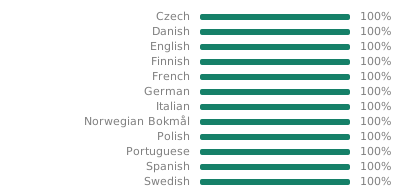
If you have used any of the other translations and have feedback, or want to help me with improving existing ones or adding new ones, please let me know! Languages are managed using Weblate, where anyone can help with the languages they know.
Reading
These built-in JetReader dictionary and AI explanation functionality have to connect to the JetReader server in order to work, and also requires me to pay for a subscription to an API. Therefore, I need to have some control over who uses these features, and how much.
To prevent excessive usage/costs, there is also an upper limit on the number of requests per month.
A JetReader account is free for now, but I may add a paid tier at a later time, with more AI queries and possibly some other bonus features.
If you do not want to use the built-in JetReader dictionary, you can use other dictionary apps you have installed on your device instead. See this FAQ item for more information.
Yes. JetReader can communicate with dictionary apps that use the ColorDict API, the NGHS Offline API, the Livio API, or any if the built-in Android actions DEFINE, PROCESS_TEXT or SHARE. This includes most common dictionary apps. If it does not include yours, please let me know!
To add an external dictionary, go to Settings => Reading experience => Dictionary buttons, and tap 'External apps'. This will list all apps on your device that can be used by JetReader. Enable the ones you want, and tap 'Ok' to return to the dictionary button configuration. In this list, you can disable buttons you don't want, and re-order the ones you want.
If you want JetReader to always open a certain dictionary when you long press a word, you can tap 'Automatically repeat last action' on the Reader settings page. Then JetReader will ask you what to do the first time you long press a word, and then repeat that action for future long presses.
Yes. JetReader has a few custom fonts built-in (most prominently Open Dyslexic), and you can also add your own.
To add your own custom fonts, go to Settings => Reading experience, and tap 'Custom font folder'. This will allow you to pick a folder on your device that contains the font files you want. Then you can enter 'Font and style settings', and tap 'Font' to override the book font with any of the fonts in your font folder.
This is an issue with some fonts on some systems. Please try picking another font in the reader settings.
Usually because of optimization features on the eReader device.
On Onyx Boox readers, for example, there is a feature called 'Embolden Webpage Text' that defaults to true on all apps, which will affect JetReader, since it uses a web browser component to render books. To disable this feature, long press the app icon, select 'Optimize', pick the 'Color' tab, tap the little pencil icon at the bottom, corresponding to 'Other Color', then disable 'Embolden Webpage Text'.
On other devices, there may be similar settings (if you figure something out, please let me know, so that I can add it here). If you are unable to solve the issue using system settings, you can alternatively force JetReader to always override the font-weight by going to Settings => Reading experience => Font and book styles, and setting 'Font weight' to for example 'Normal'
.It's an extra forceful way of setting the font size, for ebooks that do not behave properly.
Most ebooks use relative font sizes (for the technical people: set using the CSS units rem/em, or even % in some cases). This means that the font sizes in the book say that headers should be for example 120% of the base size, while the main text should be 100% of the base size. In this case, the best way to set a font size is to modify only the base text size of the book (so setting a pixel based size on the root element, for example), then all the different font sizes in the book will grow accordingly. This will, for example, allow the book to make the first letter in a chapter larger than the rest.
In some cases, however, the book styling does not respect the base size, and instead sets text size to something constant on all parts of the text. In these cases, JetReader must use the 'forced' way of overriding the book size (setting a pixel based size on all elements).
Statistics
Yes! All statistics can be exported as CSV by going to Settings => Reading statistics, and clicking 'Export reading statistics as CSV'.
Yes, you can. JetReader has built-in support for importing stats from Moon+ Reader, as well as a general CSV format.
Importing from Moon+ Reader
In order to import from Moon+ Reader, you need to create a backup from Moon, then import this backup in JetReader.
- In Moon+ Reader, enter Options, and click 'Backup' at the bottom of the window.
- Select whatever backup target you want (Local storage is easiest if JetReader is running on the same device).
- Enter a filename, and keep note of where it is saved. You do not need to check any of the 'Include [something extra]' boxes.
- In JetReader, go to Settings => Reading statistics, and click 'Import from Moon+ backup'.
- Browse your file system, and find the backup file you just made from Moon+ Reader.
- Depending on the filenames and metadata of the books you import, and whether they exist in you JetReader library, you may have to manually tell JetReader which books some of the imported stats belongs to.
Importing from CSV format
If you have your reading statistics in a format that is CSV-like, you can format it in a way that JetReader understands, and import it directly.
JetReader understands the following column headers:
- date (date)
- deviceid (text, a unique device id)
- bookid (text, a unique book id)
- filename (text, the file name of the book)
- booktitle (text, the title of the book)
- bookauthors (text, the author(s) of the book)
- fromprogress (decimal number, at what percentage did you start reading this day)
- toprogress (decimal number, at what percentage did you stop reading this day)
- words (decimal number, the number of words read this day)
- seconds (decimal number, the number of seconds read this day)
- pageturns (integer, the number of pages read this day)
- sessions (integer, the number of times you opened the book this day)
- sessionid (text, a unique id that connects all rows belonging to the same reading session)
- finisheddate (date, when you finished reading this book)
- rating (integer, from 0 to 5)
- comment (text)
- Dates must be in a common format understood by C#'s DateTime class. For example yyyy-mm-dd is safe to use.
- Decimal numbers must use a dot (.) as their decimal separator.
Importing from other apps
If you are using another reading app, let me know which one, and I can help you either convert it to CSV, or create an automated importer for other apps.
Library
There are multiple ways of adding books to your JetReader library:
- Pick books from your device manually, by clicking the 'Add' button and browsing to your book files.
- Change the JetReader library location to a folder where you have already stored your books. JetReader will scan the folder, and add all book files in it. You can also configure JetReader to automatically scan the folder for new or modified files periodically.
- Connect to a Calibre content server and download the books you want. JetReader can send read information back to Calibre if you want it to, to keep you Calibre library updated as you read through your books. You can also configure JetReader to automatically synchronize against one or more Calibre content servers periodically, so that you always have all the books you want on your device.
- Connect to Calibre as a Wireless Device, and send books from Calibre to JetReader. In this mode, book metadata will automatically be updated, and read status will be sent back to Calibre.
- Connect to a Calibre library stored in a cloud service (Dropbox/OneDrive/Google Drive/WebDAV/NextCloud/ownCloud).
If you want other ways of adding books to your library, please let me know!
No. JetReader has no built-in store, it's just a synchronization/reading app. You need to buy your books elsewhere, then add them to your JetReader library (or open them with JetReader from another app).
To connect to a Calibre content server, open the side menu (drag from the left side of the screen, or tap the hamburger button in the upper left corner), and enter the Book sources page.
Inside the Book sources page, tap the Add button in the top right corner to add a new book source. In the popup that appears, pick 'Calibre content server', then enter the address of the server (usually a local IP address, but any valid address will work), the content server port, and optionally the wireless device port (only used if you want to connect to Calibre as a wireless device). If you have it enabled in Calibre, you can also tap the auto detect button to automatically detect the address and ports of your Calibre server.
Once the connection details are entered, tap 'Ok', and the app will attempt to connect to the content server. If your server is configured to use username and password, you will get a prompt for entering this information as well. If your server has multiple libraries, you need to pick which library to connect to (and if you want to connect to more of them, just add more book sources).
After this, the Calibre content server will automatically open, and let your browse and download books.
Locate your Calibre content server in the Book sources page (left hand side menu), tap the context menu button on the right side of the server row, and select 'Edit'.
Once inside the server editor, make sure the Address is prefixed with https://, and optionally check "Skip certificate validation" in the Advanced section.
First, make sure you have configured a connection to your Calibre content server. Consult the FAQ item here if you need help with that.
Then enter the Book sources page, and tap your Calibre content server in the list of book sources to browse it. Inside the library browser, tap the context menu button in the upper right corner, and pick 'Connect as wireless device'. The app will now connect with Calibre, and set up the wireless device connection.
Once the connection is active, you can use Calibre on your computer to organize the library in JetReader just as you would when connecting a physical device to the computer.
In addition to direct Calibre content server or wireless device connections, JetReader currently supports libraries stored in Dropbox, OneDrive, Google Drive, and WebDAV (for example NextCloud or ownCloud).
To connect to a cloud service, open the side menu (drag from the left side of the screen, or tap the hamburger button in the upper left corner), and enter the Book sources page.
Inside the Book sources page, tap the Add button in the top right corner to add a new book source. In the popup that appears, pick the cloud service you want.
- For WebDAV (for example NextCloud or ownCloud), enter the address of the server, and a username and password. If possible in your WebDAV service, it is recommended to create an 'app password' where you can set custom permissions for JetReader, for example read-only, or only access to the relevant folders.
- For Dropbox or OneDrive, you will be redirected to their web page to allow JetReader access to your account. JetReader will only ask for read-only permissions when connecting.
- For Google Drive, you will be shown an Android system prompt where you can allow JetReader access to your account.
Once the connection is made, the app will attempt to connect to the service, and then you will be asked to locate your Calibre library folder.
After this, the Calibre content server will automatically open, and let your browse and download books.
Open Settings → Library → Library location to choose where JetReader stores its library.
You can select:
- Internal storage: JetReader stores its library in private app storage.
- External storage: Android opens its system folder picker, where you can select a folder on shared storage, an SD card, or another location made available through Android's Storage Access Framework (SAF).
Internal storage is the best choice if you want the fastest and simplest setup.
Advantages:
- Usually the fastest option for downloading, moving, and scanning books.
- No folder permission to manage.
Disadvantages:
- Other file-manager and reading apps cannot normally browse the files directly.
- The library is removed if you uninstall JetReader, unless you have copied or backed up the books elsewhere.
- It may not be suitable if you need to keep the library on an SD card.
External storage is a good choice if you want to manage the book files yourself or share them with other apps.
Advantages:
- You choose the folder yourself.
- Books can be kept on shared storage or, where supported, an SD card.
- Other apps and file managers can access the same files.
- The files remain in the chosen folder if JetReader is uninstalled.
Disadvantages:
- Android SAF makes file access slower, particularly for large libraries and bulk operation (downloads, moves, deletions, etc).
- Android can revoke or lose access to a selected folder in some situations.
- Folder availability can depend on the device, Android version, and storage provider.
In the same settings page, open Settings → Library → Location templates to choose how JetReader creates folders and filenames inside the selected library location.
See this FAQ item for examples.
Location templates control the folders and filenames JetReader uses inside the selected library folder. They do not change the library location itself.
Open Settings → Library → Location templates to choose a preset or create your own template. JetReader shows a live example while you edit it.
A template uses fields in braces, such as {title} and {first_author}. A / creates a subfolder. JetReader automatically adds the book's file extension and cleans characters that are not valid in filenames.
For example, for Pride and Prejudice by Jane Austen:
| Template | Resulting relative path |
|---|---|
| (default) | Pride and Prejudice - Jane Austen.epub |
{first_author}/{title} |
Jane Austen/Pride and Prejudice.epub |
{first_author:%1.1s}/{first_author}/{title} |
J/Jane Austen/Pride and Prejudice.epub |
{source_name}/{first_author:%1.1s}/{first_author}/{title} |
Project Gutenberg/J/Jane Austen/Pride and Prejudice.epub |
{first_author}/:if:{series}:then:{series}:else:No series:::/{title} |
Jane Austen/Classic Novels/Pride and Prejudice.epub |
Useful fields include:
{title}: book title{first_author}: first listed author{authors}: all authors{series}: series name{series_index}: position in the series{publisher}: publisher{publication_date}and{year}: publication date or year{tags}: book tags{id}: book identifier{source_name}and{source_id}: the source from which the book was added{first_author:%1.1s}: first letter of the first author's name{series_index:%03d/%06.2f}: a zero-padded series index, useful for keeping series in order
Use the Add template item button to insert a field, and Template presets to start with a built-in layout.
Changing the template affects the path JetReader uses for future book files, and existing files will automatically be relocated to the new paths.
Data synchronization
JetReader can synchronize reading progress, reading statistics, and bookmarks between all your devices.
You can pick how you want your data to be synchronized between devices.
- JetReader.net: Data is stored in a database on the JetReader.net server. Stored data will not be shared with any other parties. This is the fastest of the synchronization services, since it uses an optimized API created specifically for JetReader.
- Dropbox: Data is stored in the Apps/JetReader folder in your Dropbox. You need to give JetReader access to your Dropbox account, but JetReader can only read or write data to the Apps/JetReader folder, and cannot see anything else in your Dropbox.
- OneDrive: Data is stored in the Apps/JetReader folder in your OneDrive. You need to give JetReader access to your OneDrive account, but JetReader can only read or write data to the Apps/JetReader folder, and cannot see anything else in your OneDrive.
- Google Drive: Data is stored in the Apps/JetReader folder in your Drive. You need to give JetReader access to your Google Drive account, but JetReader will only read or write data to the Apps/JetReader folder.
- WebDav/NextCloud/ownCloud: Data is stored in the Apps/JetReader folder on you WebDav server. This works much like the Dropbox service, but WebDav can be self-hosted, and is supported by a multitude of online services.
Due to the overhead of the Dropbox, OneDrive and Google Drive and WebDav client libraries, using these are significantly slower than using a JetReader.net account (especially Google Drive is quite slow). Normally, however, synchronization happens in the background, and the extra time usage should be irrelevant.